
At a glance
Open the video on YouTube, show the player controls and check CC or Settings → Subtitles/CC. If there is no caption track, try a second video with captions. If YouTube shows captions but LinguaCap only shows the original, enable the translated line and check its language in the LinguaCap controls.
Find the right fix
| What you see | What to check |
|---|---|
| CC is missing or unavailable | Check the regular YouTube watch page, then try a second video with captions. |
| Only an auto-generated track is listed | Choose it as the source and check that it matches the spoken audio. |
| YouTube captions work but the second line is missing on desktop | Check the LinguaCap settings and the extension’s access to YouTube. |
| YouTube captions work but the second line is missing on a phone | Open the video in LinguaCap’s built-in browser and check translation there. |
1. Check whether the video has captions
Open the video on youtube.com and play a part where someone is speaking. Move the pointer over the player on a computer or tap the video on a phone to reveal the controls. Turn on CC, then open the captions menu to see the available tracks.
If CC is unavailable and the menu offers no caption language, try another video with captions on the same device. If that video works, the first video has no track you can use right now. YouTube may still be processing automatic captions on a recent upload. Burned-in text that stays visible when CC is off is part of the picture and cannot serve as a selectable track.
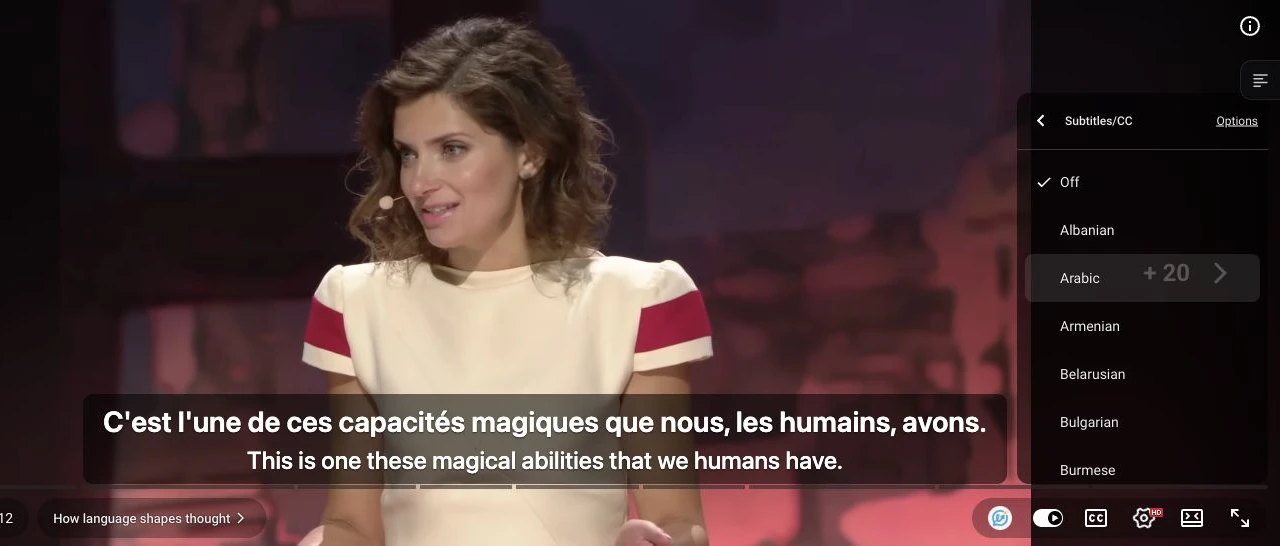
If you already have a timed subtitle file for the video, you can load an SRT or VTT file using the desktop extension. Otherwise, pick a video with an available track.
2. Check auto-generated captions against the audio
A track marked “auto-generated” is a source transcript made from speech recognition. YouTube’s “Auto-translate” option translates a caption track into another language. Start with a track in the language you hear. If both creator and auto-generated captions are available, try the creator’s track first.
If the original text is wrong, the translated line can carry the same mistake. Replay the sentence and compare the source caption to the audio. For dictation or saving unfamiliar words, try another video if the captions regularly omit or mishear words.
3. Restore the translated line on a computer
Use these checks if YouTube can display a caption track but you see only one line or no LinguaCap controls.
- Open the video in Chrome or another supported Chromium browser with the LinguaCap extension installed. Open the extension, confirm you are signed in and check that it is enabled for youtube.com.
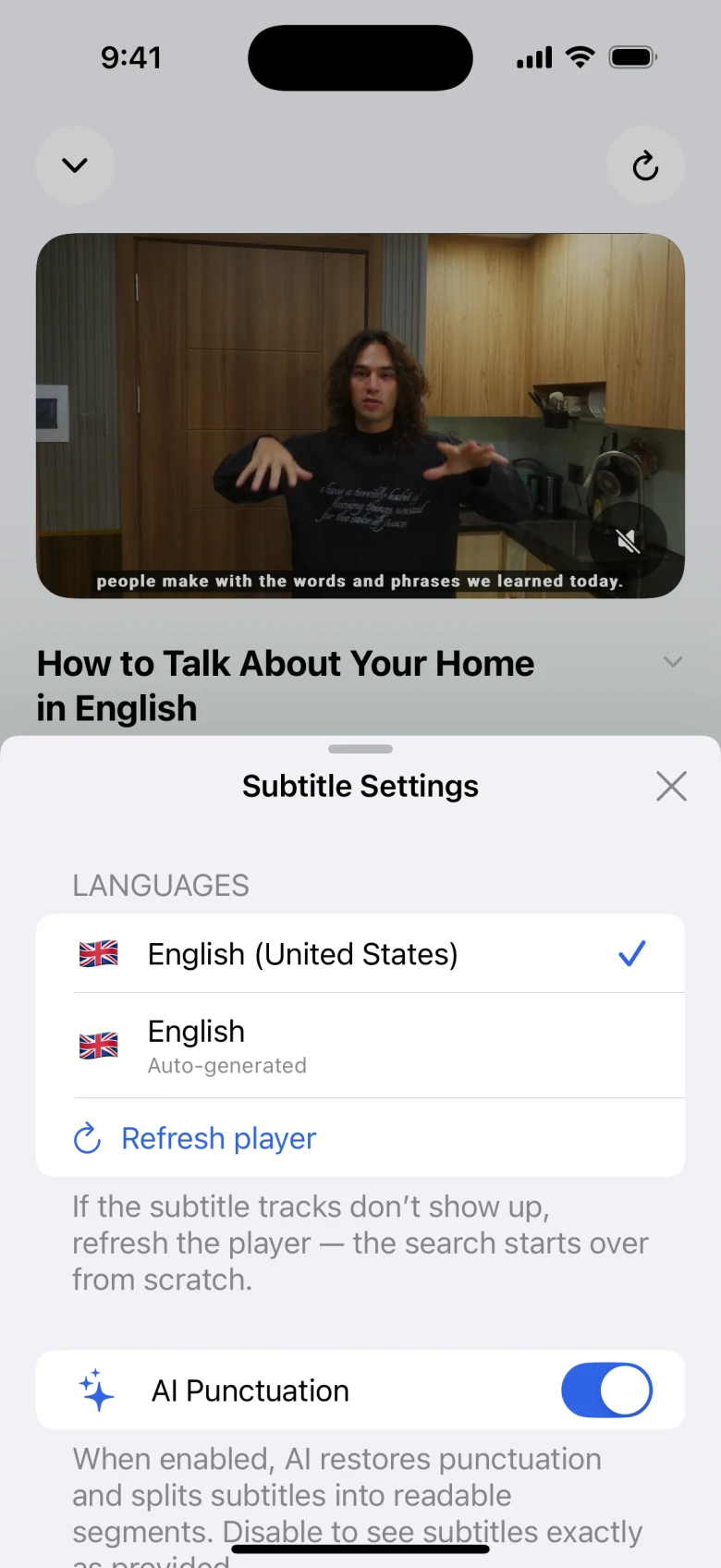
- Reload the video page, play a section with dialogue and choose an available source track. In the LinguaCap player controls, turn on translated subtitles and verify the translation language.
- Test a second captioned video in the same browser. If only one video fails, try a different source track on that video. If both fail, check whether the browser has granted the extension access to YouTube, then reload the page.
See the dual-subtitle setup guide for the full desktop and mobile setup, or open LinguaCap troubleshooting for further checks.
4. Restore the translated line on iPhone or Android
The YouTube app has its own caption controls. For two lines with LinguaCap, play the video inside the LinguaCap app.
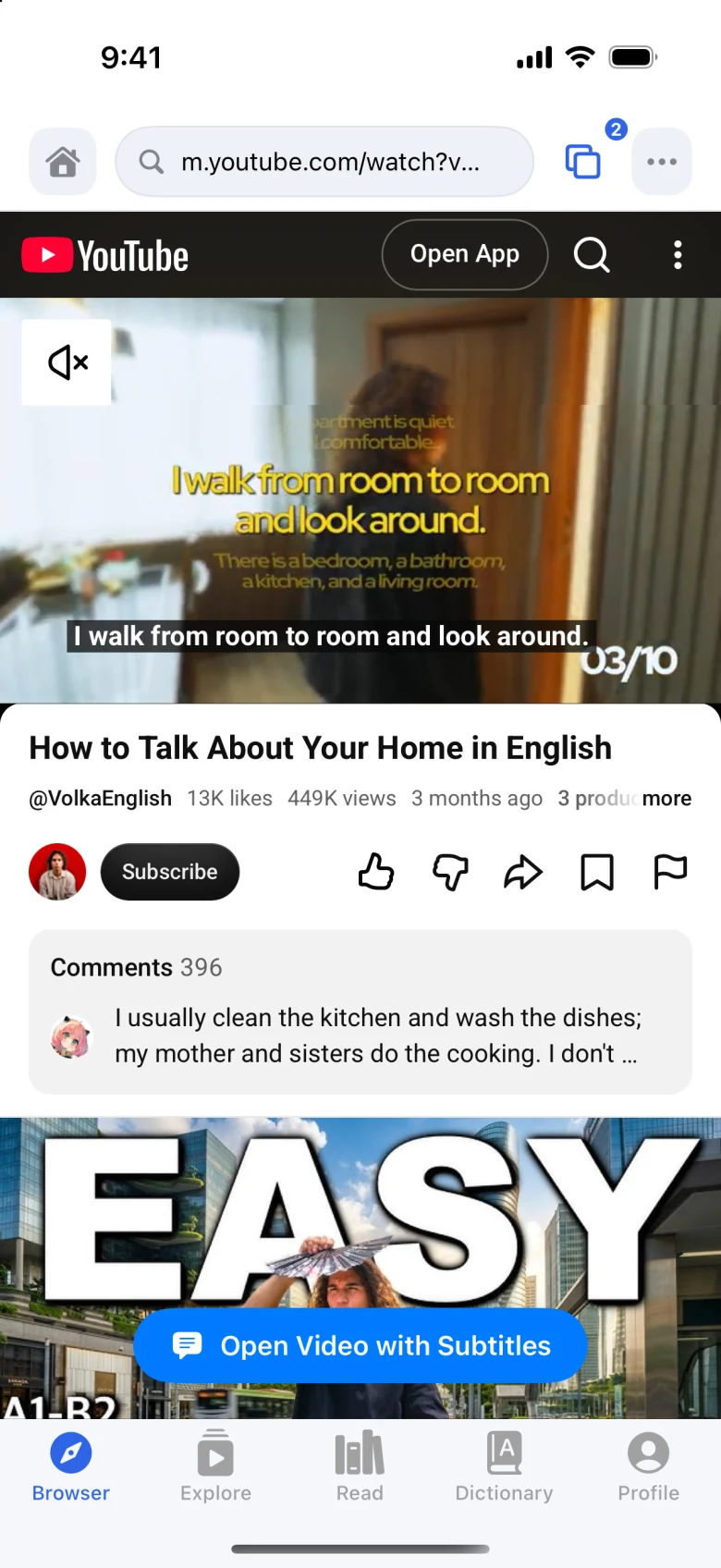
- Copy the video link, open LinguaCap and paste the link into its built-in browser.
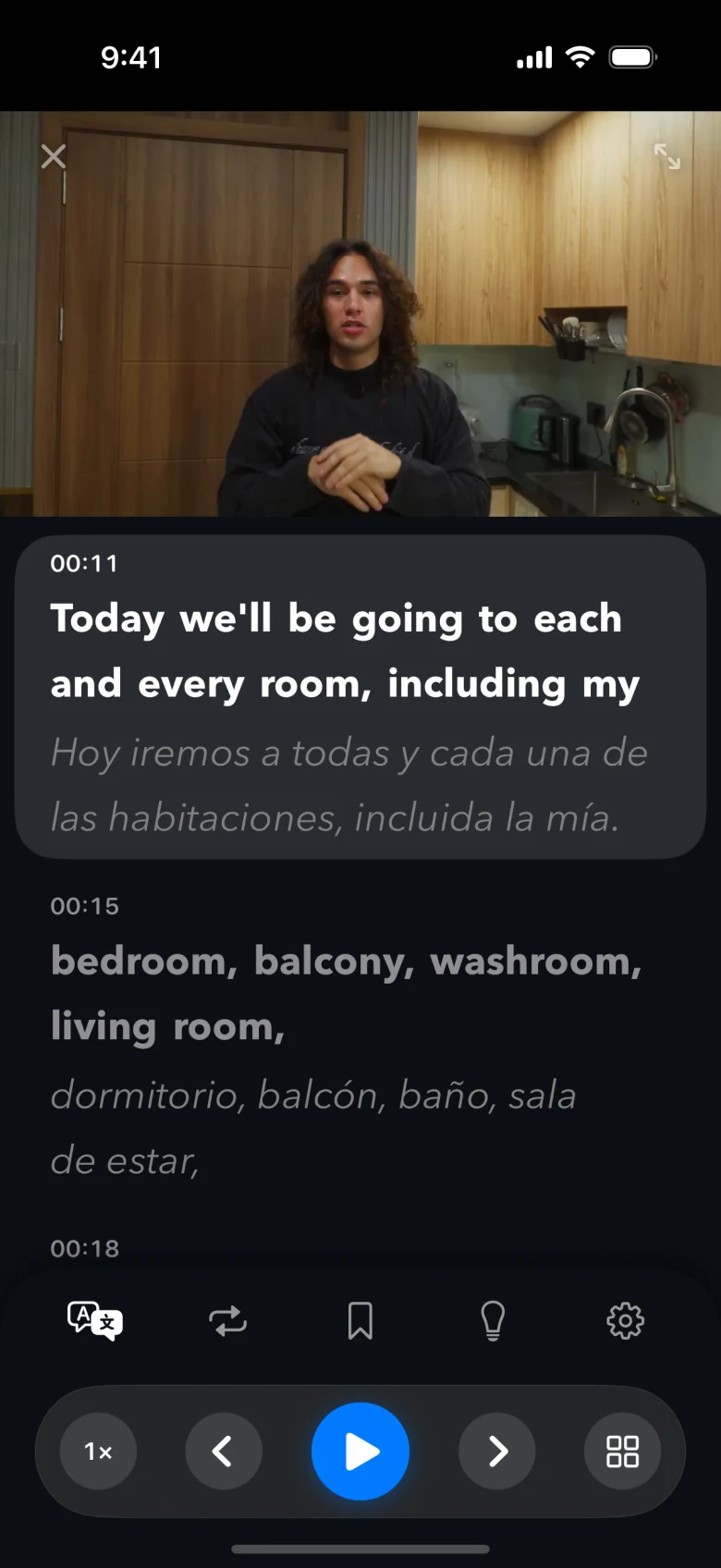
- On iPhone, tap “Open Video with Subtitles” in the built-in browser. In the LinguaCap player on iPhone or Android, select a source caption track and check that the translated line is enabled.
- Try a second video with captions. If neither works, note the video link, your device and app version, and whether YouTube’s own captions appear. Include those details when you contact LinguaCap support.
Frequently asked questions
Why is the CC button missing on just one YouTube video?
That video may have no captions available yet. Show the player controls and check the captions menu. If another video shows CC on the same device, the issue is specific to the first video.
Can LinguaCap use YouTube’s auto-generated captions?
Yes, when YouTube exposes a compatible source track. Speech recognition can miss names or words, and those errors can affect the translation.
Why do I see one line in the YouTube app?
The YouTube app displays its own caption track. To get a translated second line from LinguaCap, open the same link in the LinguaCap app’s built-in browser.
Sources and verification
This article was prepared by the LinguaCap team. Site and app features and plan terms may change; confirm current details at the official sources.
Watch a captioned video with LinguaCap
Use the LinguaCap app on iPhone or Android, or add the extension to Chrome on your computer.