
At a glance
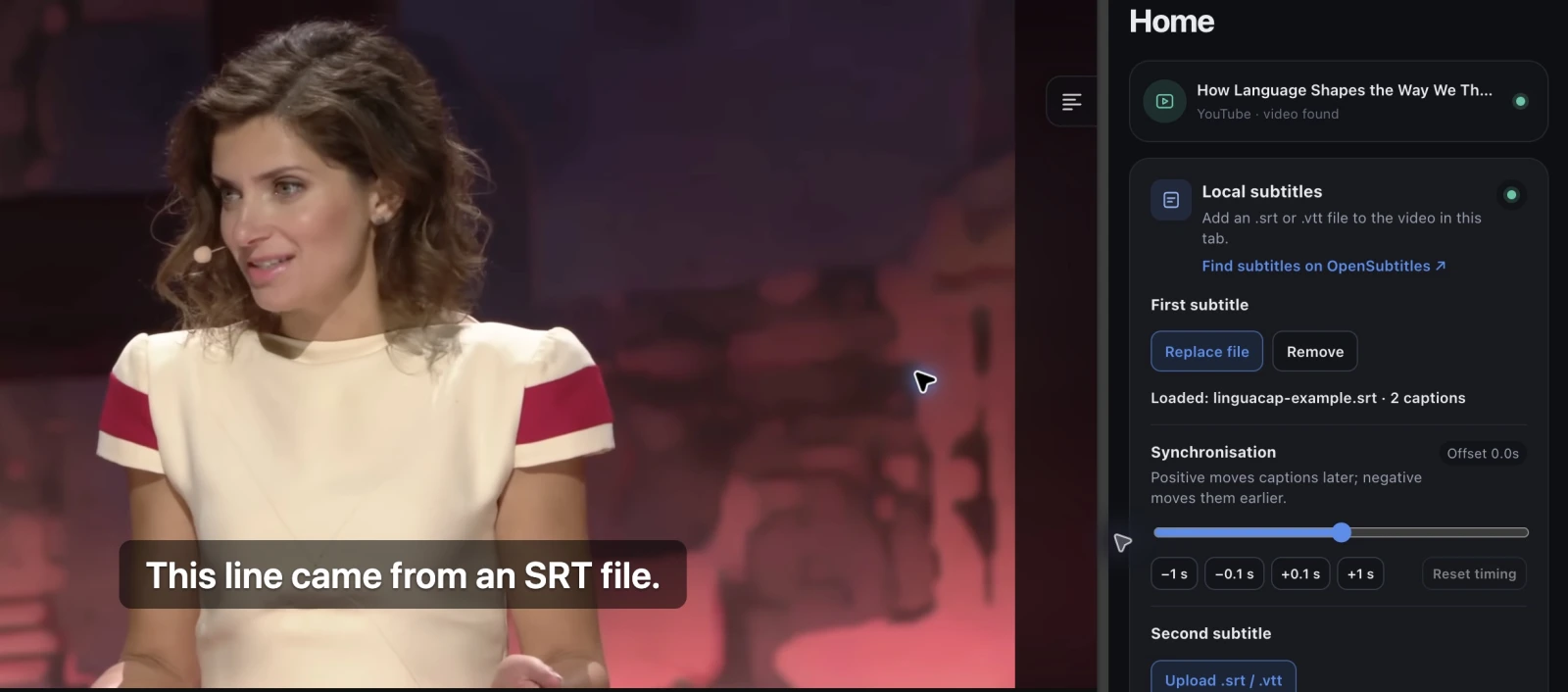
Open a video in desktop Chrome and click the LinguaCap extension icon. On Home, find Local subtitles. Under First subtitle, click Upload .srt / .vtt and choose a file. Once it loads, you can add a second file or adjust when each line appears under Synchronisation.
Upload a subtitle file in desktop Chrome
Install LinguaCap from the Chrome Web Store and sign in. Choose a subtitle file that matches the video’s audio and cut. A file for a version with a different intro can start at the wrong time.
- Open the video page in Chrome and start playback so LinguaCap can detect the player.
- Click the LinguaCap icon in the Chrome toolbar. Select Home and find Local subtitles.
- Under First subtitle, click Upload .srt / .vtt and select your file. The panel shows the filename and the number of captions it loaded.
- Play a line of dialogue to check the timing. Use Replace file to try another version or Remove to clear the track.
Download the two-cue SRT sample and try it on any compatible video. Its two example lines appear in the first 28 seconds, so start the video from the beginning. They are sample text for testing the import.
Add a second subtitle track
For language practice, put the language you hear under First subtitle. Once the first file is loaded, Second subtitle appears and you can load a file in your own language there. Make sure dual subtitles are enabled in LinguaCap so both tracks appear.
If the video already has a usable caption track, you can also start with the regular YouTube dual subtitles setup. A separate subtitle file is useful when the available captions are missing or inaccurate.
Sync subtitles with the audio
Under Synchronisation, a positive offset makes subtitles appear later and a negative offset makes them appear earlier. For example, if a caption appears at 00:10 and the speaker says it at 00:12, set the offset to +2 seconds. Use Reset timing to return to the original timestamps.
Each file has its own offset. Check a line near the beginning and another several minutes later. If the mismatch grows or changes after a scene cut, look for a subtitle file that matches the exact version of the video.
What to check if the upload fails
- If Upload is missing, confirm that the video tab is active and start playback. The control is available when LinguaCap detects a compatible player.
- Check the file extension and size. Choose a plain-text .srt or .vtt file up to 1.5 MB and 10,000 timed captions. Extract the file first if it is in a ZIP archive.
- If the text shows broken characters, save the subtitle file as UTF-8 and try again. Each caption needs a start time, an end time and readable text.
- If the track disappeared after a page reload, upload the file again. The extension keeps it only for the current tab session.
Once a track is in sync, pick a short line, replay it and type what you hear. See the dictation practice guide for an exercise you can repeat with the same clip.
Frequently asked questions
Can I add a subtitle file when a video has no built-in captions?
Yes, if LinguaCap detects the player. Bring an SRT or VTT file with timed captions for that video. The import feature does not transcribe the audio.
Can I upload an SRT file on iPhone or Android?
This import workflow uses the desktop Chrome extension. On mobile, use YouTube or a compatible site with existing captions in the LinguaCap app.
Does this upload captions to YouTube or change the video?
The extension displays captions in your own tab. It leaves the original video and the subtitles viewers see on the site unchanged.
Can I load two SRT files at once?
Load the first file under First subtitle. Then load the other file under Second subtitle and enable dual subtitles in LinguaCap. You can adjust the timing of each file independently.
Sources and verification
This article was prepared by the LinguaCap team. Site and app features and plan terms may change; confirm current details at the official sources.
Add subtitles to a video in Chrome
Install LinguaCap on your computer and open a video with a matching SRT or VTT file ready.